 Yorimichi Games


How to play Steady Maze
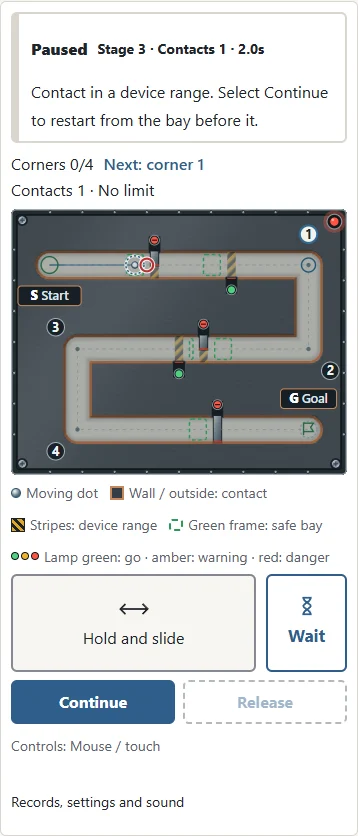
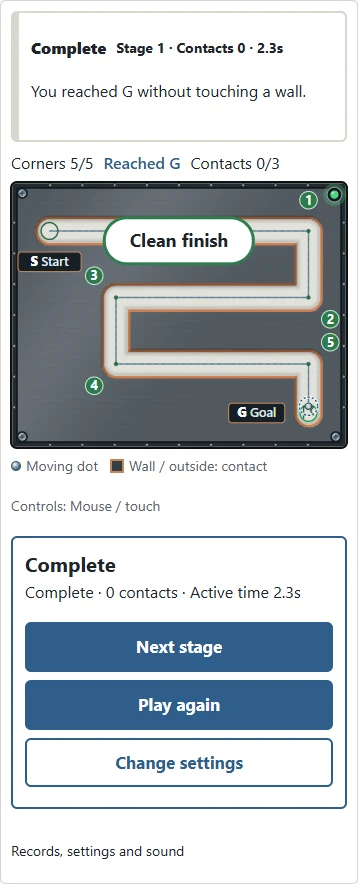
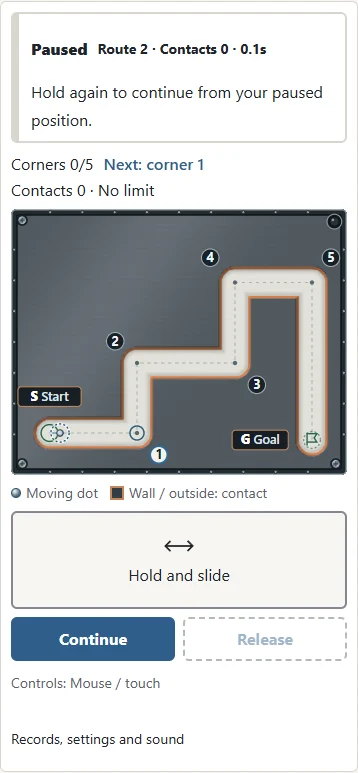
Move the small metal tip from S to G without touching a wall. The pale corridor is the space you can use, and the dotted line shows the route. Your whole marker must stay inside the corridor: keeping only its center inside is not enough. Visit the numbered corners in order, then reach the goal. The next corner has an outline; passed numbers turn green. The lamp in the top-right corner of the board glows green while you trace and turns red when you touch a wall. The dashed ring around your dot marks where to hold. Only the small solid dot determines wall contact. There are no branches to solve and no hidden turns. The challenge is controlling your movement carefully along an original route.
In Challenge mode, one wall contact ends the attempt. Select Play again to start the same route under the same settings. There is no countdown, so you can pause and look ahead. The result shows your contacts and active time. For a first attempt, choose Easy and Practice. Learn how the marker responds before trying a narrow corridor with a one-contact limit.
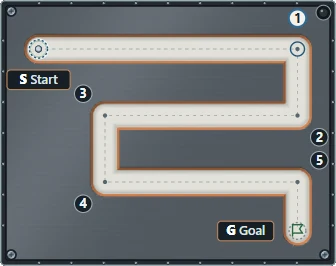
Tracing with a mouse
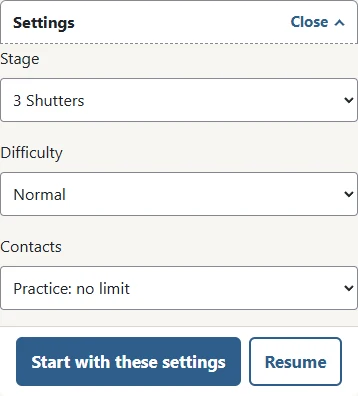
Choose a stage, difficulty, and contact mode, then select Start. Press near the marker at S and keep the mouse button held while following the line. A small offset between your press and the center of the marker is preserved, so pressing near its edge does not make it jump. Release the button to pause at your current position. Press near the marker again to continue. Clicking a distant part of the board cannot move the marker there.
Look ahead along the straight section and change direction at its corner. A diagonal move across a bend may cross a wall even when both ends of the move lie inside the corridor. Follow the route rather than taking a shortcut. If you are running out of room to move, release and reposition your hand. You can stop as often as you need, and paused time is not added to active time.
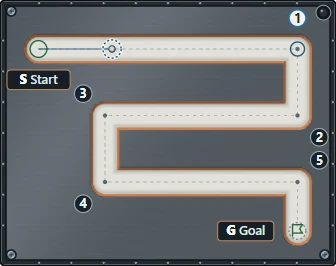
Using the control pad on a phone
The control pad below the board lets you move without covering the marker with your finger. Press anywhere on the pad, then slide your finger. The marker moves in the same direction by the corresponding distance. Pressing the pad does not move the marker to the point you pressed. You can therefore keep your eyes on the gap between the marker and the wall while your finger stays below the route.
For a long straight section, release your finger, place it back on the pad, and continue sliding in the same direction. While held, the pad follows your finger even beyond its outline, but you should release before reaching the edge of the screen. Direct tracing on the board and relative movement on the pad use exactly the same contact rules. Choose whichever feels clearer on your device. Turning the screen while controlling the marker pauses the attempt; select Continue and reposition your finger before moving again.
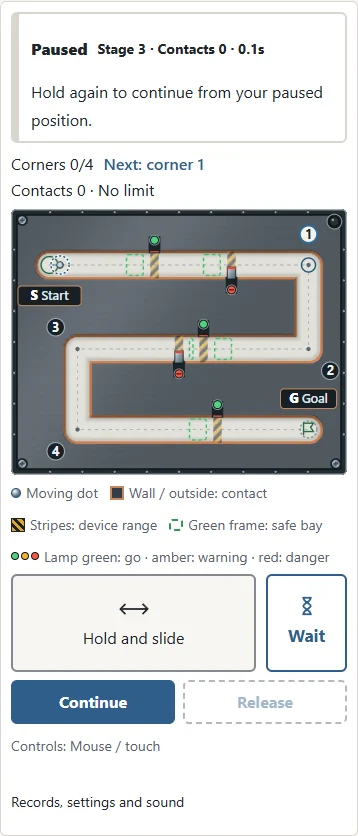
Waiting and keyboard shortcuts
Press near the marker and drag, or hold and slide on the control pad. On stages with devices, hold the marker or the pad still to wait in place. One press of the wait button, marked with an hourglass, lets a little time pass without moving the marker; it appears only on stages with devices. There are no on-screen direction buttons, and the keyboard arrow keys do not move the marker. On a computer, holding Space also waits in place. P pauses or continues. Escape and Release stop input at the accepted position without undoing movement or contacts. A second finger also stops input; select Continue before holding again. Game shortcuts do not run while you are editing a setting or using a focused form control.
You may change controls during an attempt. Mouse and touch (including the pad), keyboard, the wait button, and mixed controls have separate records. To compare attempts with a friend, use the same stage, difficulty, contact mode, and control method. Mouse, touch, and pad movement follow the same wall contact, corner order, and finish rules.
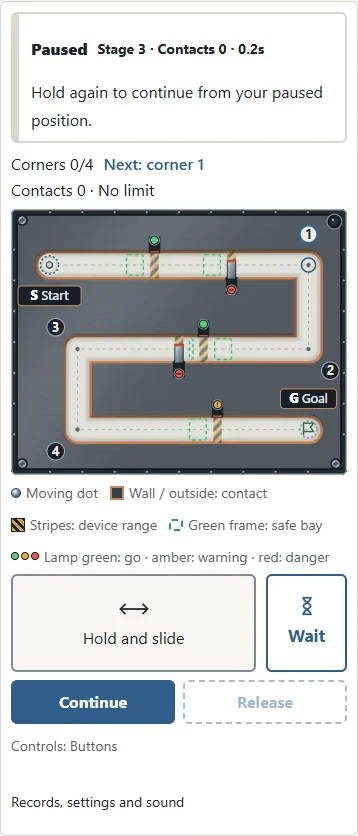
Choosing a contact mode
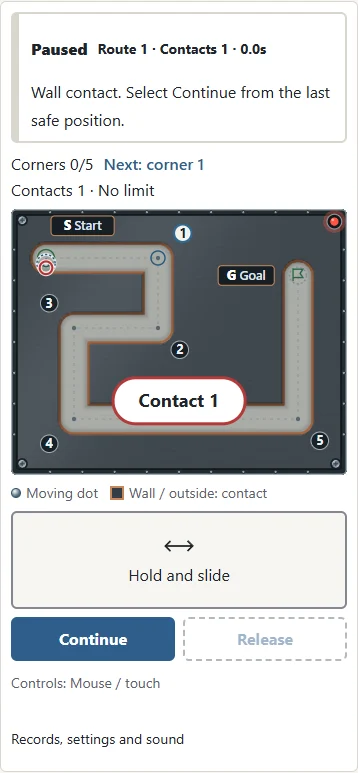
Challenge ends at the first contact. Your aim is to travel from start to goal with zero contacts. Three contacts ends at the third contact. The first and second contacts pause the attempt. Contact with a device or a wall in its range returns you to the bay before it; other wall contacts stop at the last safe position. Select Continue to resume. The marker does not move through the wall or restart on its far side. A contact remains visible as a small outline so you can see where the attempted movement crossed the boundary.
At the moment of contact, a short spark appears at that point and the board frame flashes red. Until you select Continue, the board is slightly dimmed and pressing the marker does not move it.
Practice has no contact limit. Every contact is counted and pauses the attempt. Keeping a finger pressed against a wall cannot create repeated contacts while paused: choose Continue before moving again. Reaching G in Practice still completes the route, but the result distinguishes a clean attempt from one that needed retries. Practice is useful for learning one troublesome bend, then returning to Challenge when you can follow it comfortably.
Stages and devices
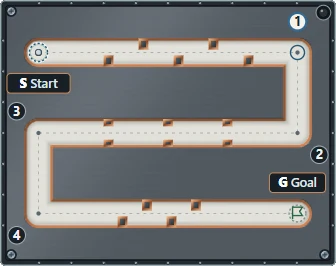
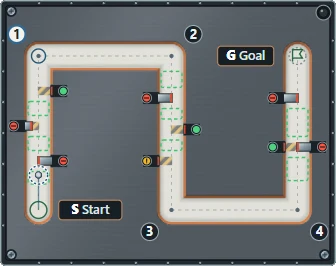
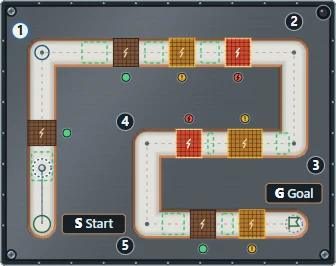
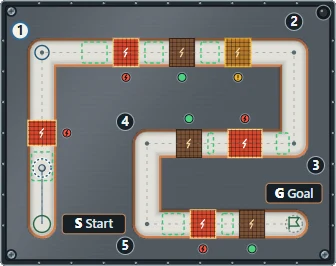
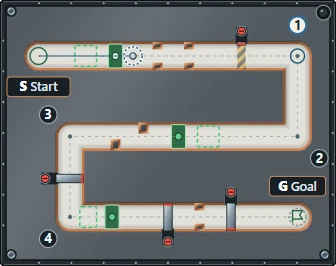
The eight stages are arranged in order, and each one adds something new. Stage 1 has only corners and straights, so you can get used to the corridor width. Stage 2 asks you to weave between teeth that stick out from the walls; a tooth is part of the wall, so touching it is a contact. Stage 3 brings shutters that close across the corridor, stage 4 pistons that push halfway across, stage 5 live plates in the floor that carry current on a cycle, and stage 6 doors that open for a limited time after you cross a floor switch. Stage 7, Factory lane, and stage 8, Final line, combine the earlier devices. After completing stages 1 through 7, select Next stage in the result panel to advance. Every stage can be chosen from the start.
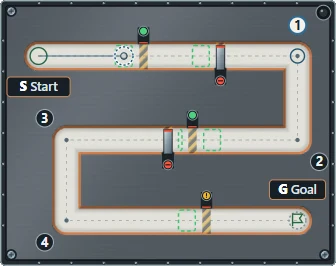
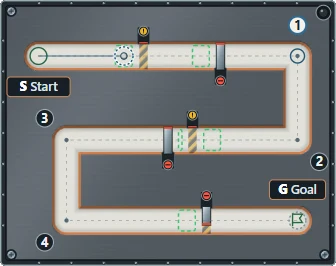
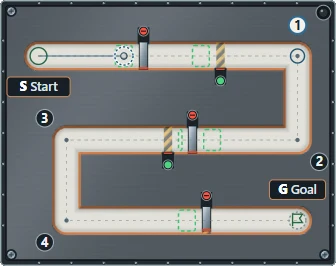
The floor around each moving device is marked with yellow and black stripes. The stripes show the range the device can reach: as long as your round tip stays off the stripes, that device cannot touch you. In front of each device there is a safe bay outlined by a green dashed frame, where you can stop and watch the next movement. A shutter or piston that moves while your tip is on its stripes causes a contact, so watch the order of movements from the bay before you go through.
The lamp beside a device shows its state. Green means you can pass, amber is a warning that it is about to move, and red means it is closed, moving, or live. There is always a short delay between amber and the movement. Around the lamp of a switch door, a ring shows how much open time remains; the shorter it gets, the sooner the door closes.
Devices run only while you are playing. Releasing your finger or mouse, selecting Pause, or switching to another tab stops the devices exactly where they are. When you continue, they resume from that moment, so nothing moves ahead while you are away. To wait for a device, hold the marker without moving it, hold Space, or press the wait button.
Getting past each device
A shutter opens and closes repeatedly. Leave the bay just after its lamp turns green and you will have plenty of time. Where two shutters follow each other, stop in the small bay between them and check the second lamp before continuing.
A piston pushing from one side leaves a narrow gap on the opposite side. Watch both the piston and the wall when using that gap. To use the wide side instead, pass while the piston is pulled back. Where pistons push from both sides, watch each movement and the space between them.
A live plate is safe to cross while it carries no current. When it starts flashing amber, wait off the plate. Standing on a plate when the current comes on is also a contact. A switch door must be passed before it closes again after you cross its switch. Stay calm in any narrow part on the way, but do not stop for long. If the door has already closed, go back a little and cross the switch again to reopen it.
In Three contacts and Practice, contact with a device or a wall on its stripes sends the marker back to the safe bay in front of that device before pausing. A wall contact away from the stripes keeps the usual rule and pauses at the last safe position.
Difficulty and classic routes
Difficulty changes the corridor width and the gaps left by teeth and pistons. Easy is wide, Normal is narrower, and Hard leaves less space beside the marker. Device speed and warning time are the same at every difficulty, and so are the marker size and contact rules. On a small screen, the same drawing occupies fewer physical pixels, making finger movements more delicate. Try the pad or a wider difficulty if it feels cramped. Walls themselves never move; only the devices inside their striped ranges do.
Below the stages in the list, there are three classic routes without devices: a return path, a stepped path, and a path with successive bends. Their corridors are a little wider. Every stage and route is a single connected corridor without a dead end. Visit its small corner marks in order. You can move backward, but reaching the goal without visiting the required corners does not finish the attempt. Follow the dotted center line around each bend.
Getting around a bend
Before reaching a corner, look at the direction of the next section. Stay near the dotted line on a straight, then shorten your movement as you approach the bend. If the next section goes down but you keep moving sideways, you can leave the rounded end of the corridor. Moving to the center of the bend before turning is a clear starting technique. It also helps you see which corner mark you have passed.
Avoid trying to finish a long movement with one hurried swipe. On the pad, release and reposition your finger. On the board, release and press near the current marker again. Pauses are allowed and do not use active time. In a narrow section, small movements while watching the clearance are often more reliable than aiming at a distant point. Use Practice to repeat a difficult corner and discover where you need to slow down or change direction.
Pause, save, and results
Releasing a finger or mouse pauses movement. The Pause button, opening settings, and moving to another tab also stop the attempt. When the screen asks you to Continue, select that action before moving. A pause caused by contact or by opening settings cannot be bypassed by simply pressing the marker. This gives you a chance to read the contact count and reposition your hand. There is no automatic restart that might surprise you.
When you reopen the page in the same browser, select Resume. An attempt saved on a classic route before this update continues on that route at its saved position. Only one attempt is saved; starting a new one replaces it. The saved attempt includes position, visited corners, contacts, active time, stage, difficulty, and where each device is in its movement. The Japanese and English pages share this progress. It does not transfer automatically to another browser or device. Clearing browser storage removes progress and records, and environments that block storage may not retain them. Start begins a new attempt with the selected settings, so use Resume when you want your existing position.
Records keep the number of completions and your fewest contacts for each stage, difficulty, contact mode, and control method. The best active time is the fastest among attempts with that minimum contact count. Waiting while held, holding Space and using the wait button add to active time; released or paused time does not. Existing classic-route records remain available. It is not the total time from opening the page, and a failed Challenge does not add a completion. Reopening a completed result does not count it twice. Sound begins switched off; use the Sound button to turn it on if you want feedback at the end of an attempt.
Frequently asked questions
Can I continue at the point where I touched the wall? No. In Three contacts and Practice, contact with a device or a wall in its range returns the marker to the bay before it; other wall contacts stop at the last accepted safe position. Select Continue before moving. Challenge ends the attempt, so use Play again to return to S.
Must I stay exactly on the dotted line? No. It is a guide, not a scoring line. You can move beside it while the whole round marker remains inside the corridor. Touching a wall with the marker’s edge still counts.
Does releasing my finger cause a mistake? No. Releasing simply pauses at your current position. Hold again to continue. The rule is the same for direct tracing, the pad, and mouse movement.
Why did reaching G not finish my attempt? You need to visit the corner marks in order. Return to the next unvisited mark and follow the route from there. A shortcut cannot replace a required corner.
Where should I wait while a device is moving? In a safe bay with a green dashed frame, or anywhere well away from the yellow and black stripes. If your round tip is off the stripes, the device cannot touch it.
What if a switch door closes before I reach it? Go back and cross its switch again; the door opens once more. Waiting in front of a closed door does not open it.
Why is the recorded time shorter than my whole visit? Active time counts while you are controlling the attempt. Paused time, reading settings, and time in another tab are excluded. Best time is compared among completions with your minimum contact count.
How steady-hand rules differ
Physical steady-hand activities usually involve moving a loop along a bent wire. Touching the wire completes a circuit and produces light or sound. Educational versions vary the bends or loop size to explore difficulty. There is no single universal competition rule: some versions send you back to the start after a touch, some limit contacts, and some compare completion times. An activity built to explore a circuit may not specify a win condition at all.
This version uses a metal corridor and a small round tip. Contact happens when the marker reaches a wall. Keep the round marker inside the corridor and clear of the walls. Choose Challenge, Three contacts, or Practice; none has a time limit. Three contacts and Practice resume from the bay before a device after contact with that device or a wall in its range; other wall contacts resume from the last safe position. Check the selected contact rule before playing, especially if you have learned a different version elsewhere.
| Mode | On contact |
|---|---|
| Challenge | Ends at first contact |
| Three contacts | Ends at third contact; continue from the bay or last safe position |
| Practice | Count contacts and continue from the bay or last safe position |
References for physical loop-and-wire activities: Science World / Energizer Science Center / IET Education
Comments
Write a comment
No comments yet.