 Yorimichi Games



How to play Jump Action
Jump Action is a single-player platform game about reading ledges and reaching an open doorway. Move a small blue bird left and right and jump between ledges. There are six original courses, and every course is available immediately. Choose a difficulty and a course in settings, then press Start. You can practise the first course, skip to a particular obstacle, or return to a course you have already completed. No account, download, or purchase is required.
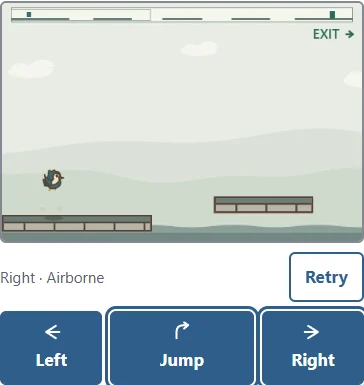
The arrow buttons and their outlines show held inputs for both keys and touch. Holding both directions is neutral. The row just below the game view shows the direction you are holding and whether you can jump, such as Jump ready or Airborne. Release input or Escape clears anything that stays held. Movement buttons show they are unavailable after an attempt ends or while paused; press them again after resuming.
The course you choose is drawn in the game view before you press Start. The main view follows your movement across the course and shows a little more of the ground ahead in the direction you are travelling. A narrow strip at the top is an overview of the whole course: it shows your location, the exit and a frame around the part currently in view, so you can see how much ground remains. Left and right always mean the directions on your screen. Reaching the exit completes the current course; falling into the valley below the ledges ends the attempt. The game view then shows what happened, and you can tap it or press Space or R to try again. There is no limit on retries. The aim is to notice the same visible clues on your next attempt and use them more effectively, rather than memorise invisible surprises.
Movement and jumping rules
Hold Left or Right to move. Press Jump to start one jump while standing on a ledge. A held button does not produce another jump when you land: release it and press again for the next jump. There is no second jump in the air. Timing is a little forgiving, though: if you press Jump a moment before landing, the jump starts as you touch down, and a press made just after walking off an edge still counts. While airborne, a soft shadow on the ledge below the bird shows where you are about to land. These rules apply equally to touch buttons and keyboard keys.
You can steer left or right while airborne. Holding a direction builds speed. Releasing it lets the bird coast briefly to a stop. Pressing the opposite direction brakes before accelerating the other way. Release a little before a ledge edge or spikes, and allow room to stop. Gravity continues to pull the bird down. Stopping above a gap therefore does not make you hover. Start a jump closer to the edge when you need more horizontal reach, and release the direction when you need to avoid travelling too far. The bird has the same movement speed, jump strength, and gravity on all three difficulties. A smaller screen changes the size of the picture, not the physical distance you can travel.
Read solid, mesh, and cracked ledges
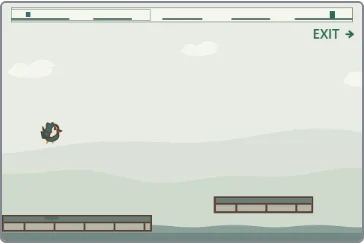
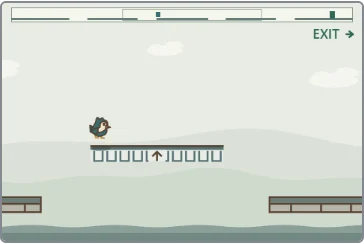
A solid ledge supports the bird from above and blocks movement through its sides or underside. A mesh ledge behaves differently: you can rise through it from below, then land on its top while falling. Passing through the side of a mesh ledge does not automatically lift you onto it. You need to rise high enough that your feet cross its top on the way down. The mesh floor is a direction clue, not a warning that the ledge is unsafe.
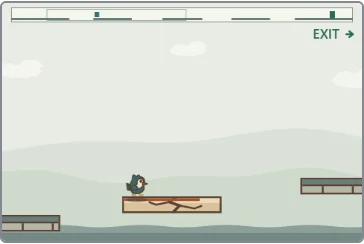
A cracked ledge starts a short countdown when you first land on it. The narrow bar along its top shrinks until the ledge collapses. Leaving and returning does not refill that bar. Plan the following jump before you land, and use a solid ledge when you want time to think. A collapsed ledge stays gone for the rest of the attempt. Retry restores every ledge and resets every countdown. Cracks, mesh, and the shrinking bar distinguish these surfaces without relying only on their colours.
Obstacles and the end of an attempt
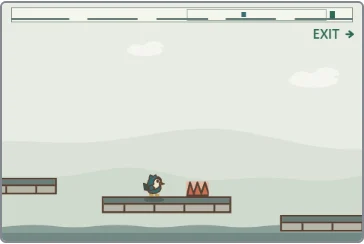
Touching spikes ends the attempt, including contact from above. Landing near an obstacle is different from landing safely beyond it. Check what comes after your destination ledge as well as the width of the ledge itself. You may need to stop after landing, release Jump, and make another jump before walking into the spikes. Practise this on the fourth course.
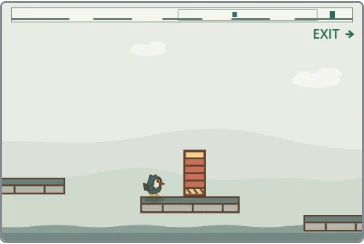
A timed shutter opens and closes. The closed red shutter is dangerous. When the door rolls up and the green lamp is on, the opening is safe to pass through. The cycle is fixed and does not react to your position, your previous failures, or the difficulty of your last jump. Wait on safe ground to observe it before moving through. Falling, a collapsed ledge, spikes, and a closed shutter have separate explanatory messages. An attempt also ends after ten minutes of active play. You can retry immediately, and there is no penalty carried into the next attempt.
Six original courses and learnable surprises
Course one teaches spacing: approach the edge, jump across a gap, and adjust the landing. Course two adds a cracked ledge and asks you to move on before its countdown finishes. Course three introduces a mesh ledge that you can jump through from below. Treating it exactly like a solid ledge can lead to an unexpected landing, but its border explains the difference in advance.
Course four asks you to look beyond a landing because spikes stands farther along the ledge. Course five introduces a timed gate and rewards waiting for a safe opening. Course six combines cracked ledges, a mesh ledge, and spikes. The objects are visible before you touch them. There are no hidden blocks that suddenly appear, no invisible traps that change between attempts, and no reversal after you enter the exit. A surprise comes from overlooking a clue. Once you understand the clue, the next attempt follows the same rules and gives you a chance to improve.
Easy, Normal, and Hard difficulty
Acceleration, braking, top speed, and jump height are the same on all three difficulties. Practise coasting to a stop on Easy before trying the narrower ledges. Easy has the widest intermediate ledges and a cracked-ledge countdown of 0.60 seconds. Normal narrows those ledges by thirty-two course units and gives you 0.40 seconds. Hard narrows them by fifty-six units and gives you 0.25 seconds. The first and final ledges remain the same width. Course units belong to the game world, so a phone does not secretly make a gap wider than it is on a computer.
On Normal and Hard, courses two to five each add one clue that the same course or an earlier course has already shown. In course two the ledge before the exit is cracked as well. In course three the ledge before the mesh is cracked. In course four the ledge before the spikes is cracked. In course five the second ledge has spikes. Hard also raises the middle ledge into a high step on the courses without a mesh ledge, and in course six the spiked ledge crumbles too. A jump from a high ledge carries farther, so let go of the direction in the air to line up your landing. On Normal, courses one and six have the same clues as on Easy.
Every timed gate repeats a four-second cycle. It is active for 1.25 seconds on Easy, 1.75 seconds on Normal, and 2.25 seconds on Hard. The remaining part of each cycle is safe. Hard therefore requires more careful landings, quicker movement from cracked ledges, and better judgement at gates. This is a skill exercise rather than a match against a computer opponent. Start with Easy to learn the ledge types, then repeat the same course on Normal. A completed course on one difficulty does not prevent you from practising it again.
Touch controls, keyboard controls, and saving
The buttons are arranged Left, Jump, Right. On a phone or tablet, hold a direction button with one finger and press the middle Jump button with another. You do not need to drag the bird or touch a small object in the scene. Opposite directions cancel each other when both are held. On a keyboard, use the left and right arrows or A and D to move. Space, the up arrow, or W starts a jump. P pauses or resumes, and R retries the current course. Game keys do not operate while you are editing a settings field.
Pause, opening settings, and leaving the browser tab stop the course. Held controls are released when play is interrupted, so press them again when you resume. Continue restores the saved position in a paused state; press Resume or P, or tap the game view, when ready. Your course, difficulty, position, obstacle state, and completion records are stored in this browser on this device. Clearing browser storage removes them. Another browser or device has its own records. If storage is unavailable, you can still play, but progress may not survive closing the page.If the ledges have changed since you saved, Continue starts that course again. Your best times stay saved.
Finishing a course, records, and common questions
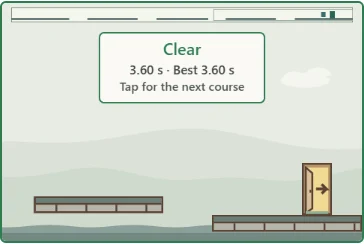
Enter the open doorway with an arrow near the right end of the course to finish. The doorway lights up and the game view shows your time and your best time for that course. The Next button, or a tap on the game view, opens the following course until course six. Space also advances when the game canvas or Next button has keyboard focus. Release any Space press held through the finish, then press it again. Release and press once more to jump in the new course. After the final course, choose another course or difficulty in settings. A completion time measures active play from the beginning of the attempt to the exit. Paused time is excluded. Retry resets the timer and all obstacles. The best successful time for each of the eighteen course-and-difficulty combinations is saved locally. Failing does not erase a previous successful record. The records area below the game lists your best time on each of the six courses for the difficulty you are playing.
If Jump seems unresponsive, check whether you are airborne or still holding the button from the previous jump. Land, release it, and press again. If a cracked ledge has disappeared, Retry brings it back. If a route appears blocked, reconsider the mesh floor or wait for a shutter to open. You can always practise a different course from settings. Repeat a course to practise spotting the next ledge and the shutter opening. The challenge is to observe, attempt, and adjust your next move, with visible rules that stay consistent.
Comments
Write a comment
No comments yet.